
Adding translations to content files: The Economy 2.0
The contents of The Economy 2.0 are stored as files within a code repository.
Electric Book Works (EBW) will provide offline copies of the English files to your translation team to work into and return for technical quality assurance and addition back into the repository.
When adding translations to these files, refer to these guidelines from EBW, and the supporting documents they mention.
File types
As you translate the contents of The Economy 2.0, you’ll be working into:
-
Markdown files, which end in
.md, and are used to store the contents of the units.To edit the markdown files, you will need to know markdown. This is mostly to understand what is code markup and needs to be retained within the English files (for example, hashes indicate heading levels), but sometimes you may need to introduce markdown to format your translated content too (for example, adding bold or italics with asterisks).
If you’re new to markdown, don’t worry: it’s easy to use! It is a plain-text syntax, chosen for our workflow specifically because it is easy to work with, no matter your level of technical confidence or experience.
The Electric Book template documentation explains everything you’ll need to know, and you’ll get a sense of how it works from how it is used in the English files.
-
YAML files, which end in
.yml, and are used to store data about and used by the book.You won’t need to learn YAML to work into these files. You just need to know that YAML relies entirely on structure, so it is essential to retain the existing structure (indentation, all punctuation) and follow the guidelines given here when adding translations to this file type.
-
Google Sheets, for the translation of non-data figures.
Content overview
To help translation teams through the addition of translations to The Economy 2.0’s content files, we provide:
- these guidelines
- a content tracker sheet which lists all of the content files requiring translation, and lets both EBW and the translation team track and date what has been provided and returned; this sheet is shared with the translation team by the EBW project lead
- the project content which needs to be translated:
| Content type | Description | Provided as |
|---|---|---|
| Landing page | Users will be able to toggle to a version of this page in their language when visiting core-econ.org/the-economy/. | YAML file |
| Localizations/Locales | Localizations include text which the user will encounter when engaging with the web book, such as ‘Home’, ‘Contents’, ‘Next’, ‘Read’, ‘Correct!’ and ‘Expand all’. | YAML file |
| Information about the book | Metadata about each volume, Microeconomics and Macroeconomics, such as the title, book description, and copyright statement. | YAML files |
| Contents and features list pages | Portions of the book’s contents and features list pages (which contain mostly standard or automated content, and require translation of certain aspects only, such as headings). | YAML files |
| Book front- and endmatter, and units | This is everything from the copyright page and preface (frontmatter), through the units, and the ‘Looking forward’ and copyright acknowledgements pages (endmatter). For the units, each section and MCQ is provided as a separate file. |
Markdown files |
| Non-data figures | These figures are created manually by EBW, within Adobe Illustrator. The artwork labels are provided within a table for translation and addition back to the artwork files by EBW. | Google Sheets |
| Data figures | The creation of these figures is automated; they are drawn from a code repository. An offline copy of the files which generate the artwork is provided for translation of the text. |
YAML files |
| Glossary | The glossary includes:
|
YAML file (glossary) and markdown files (units) |
| Bibliography | All references appear at the end of each volume, in the bibliography (example). The references section for each unit (example) is auto-compiled from this bibliography file. |
YAML file |
| Index | This book features a dynamic index, which includes two main components:
|
Markdown files (one file for the list of index entries and tags within the unit files) |
| Video transcripts | The transcripts of the Economist in Action (EiA) videos by CORE. | Markdown files |
| Errata | CORE implements errata in batches. The translation team may need to implement any errata batches closed after provision of the source content. The process for implementation of errata is determined by CORE. | Google Sheet (shared with translation team by CORE when relevant) |
Editing files
Use a code editor
To open and edit these some of the content file types (markdown, YAML), you’ll need a code editor (a programme designed for working into code-based files).
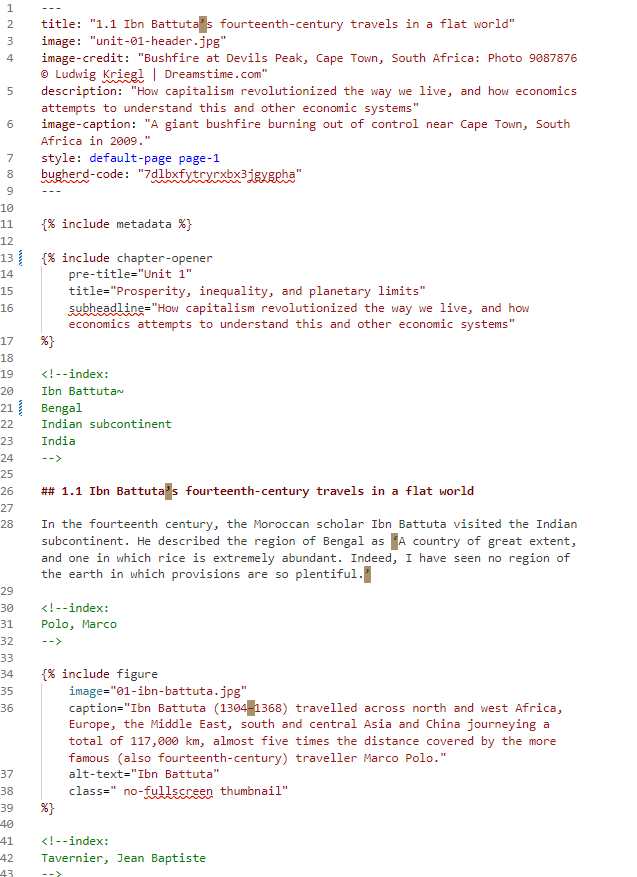
Code editors include a syntax highlighting feature, which differentiates code visually (through colour or font) from plain text. This is very useful when editing text within these files, as it helps you distinguish what is code and what is content.
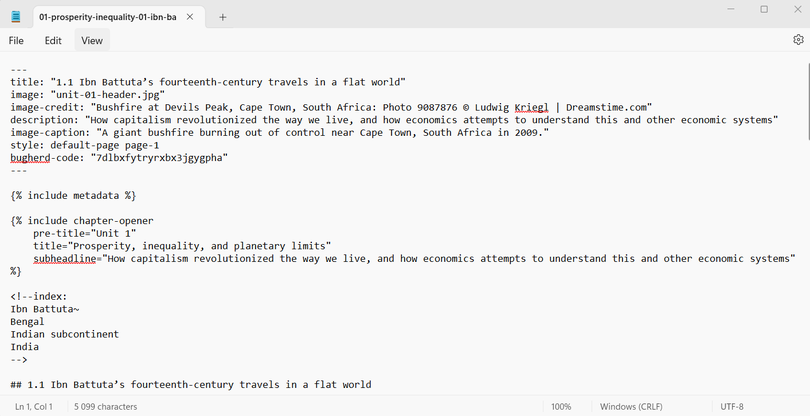
For example, a markdown file viewed without syntax highlighting will look something like this:
And a markdown file viewed with syntax highlighting will look something like this:
If you don’t already have a code editor installed, we recommend:
- For general or first-time users:
- For technically-confident users (Windows and Mac): VSCode (download)
All of these recommended options are free to download and use.
Tips
- Save your work. Most code editors offer an auto-save feature. Make sure to turn this on before working.
- You can also save manually and quickly by using the keyboard shortcut:
Save: Ctrl+S (Windows/Linux), Cmd+S (Mac)
- You can also save manually and quickly by using the keyboard shortcut:
- Further keyboard shortcuts can save time and help you navigate code-editor functions. Here are some common, useful shortcuts:
- Cut: Ctrl+X (Windows/Linux), Cmd+X (Mac)
- Copy: Ctrl+C (Windows/Linux), Cmd+C (Mac)
- Paste: Ctrl+V (Windows/Linux), Cmd+V (Mac)
- Undo: Ctrl+Z (Windows/Linux), Cmd+Z (Mac)
- Redo: Ctrl+Y (Windows/Linux), Cmd+Shift+Z (Mac)
- Select All: Ctrl+A (Windows/Linux), Cmd+A (Mac)
- Indent: Tab
- Outdent: Shift+Tab
- Move to Line Start: Home (Windows/Linux), Home (Mac)
- Move to Line End: End (Windows/Linux), End (Mac)
- Select Line: Ctrl+Shift+Left/Right Arrow (Windows/Linux), Cmd+Shift+Left/Right Arrow (Mac)
- Start Searching: Ctrl+F (Windows/Linux), Cmd+F (Mac)
- Find Next: Ctrl+G (Windows/Linux), Cmd+G (Mac)
- Find Previous: Shift+Ctrl+G (Windows/Linux), Shift+Cmd+G (Mac)
- Replace: Shift+Ctrl+F (Windows/Linux), Cmd+Option+F (Mac)
- Replace All: Shift+Ctrl+R (Windows/Linux), Shift+Cmd+Option+F (Mac)
- Use the multiple cursor function where available. Supported by most code editors, this allows you to place more than one cursor for editing multiple locations simultaneously. Refer to your code editor’s documentation for guidance.
Process
The EBW project lead will share a content tracking sheet with you for your project. This lists all of the content to be translated, with dates on which the source content has been provided to you by EBW and the dates on which you returned translated content.
The content tracker notes the process agreed with CORE for approvals and errata implementation. It also specifies the primary delivery method for the source (English) and translated files for the project.
- Retrieve the English files from the location specified under “Source files (‘From EBW’)” in the content tracker’s ‘Translation details’ tab.
- Save each source file as a copy (do not overwrite the version in the source folder), then add translations of the English content, referring to the following guidelines.
- When a file has been translated and finalized (according to the approval process with CORE), it is added to the location specified under “Translated files (‘For EBW’)” in the content tracker’s ‘Translation details’ tab.
Adding translations to markdown files
Markdown files end in .md.
The markdown files that contain the content of The Economy 2.0 also include various coding syntax and pieces of code, which are used to format the content.
When working into these files, only the content should be translated, and not the code. The syntax highlighting provided by your code editor will help towards understanding what is code, but sometimes displayed text (which needs to be translated) is included within code.
A general rule of thumb, mostly useful when working into YAML files, is that within pieces of code, any text between double quote marks which maps to what you can see on the English version of the website should be translated.
But this is still the case in certain code within markdown files, for example, for figure captions, the text between the double quote marks is translated, but the image=, caption=, alt-text= portions are not:
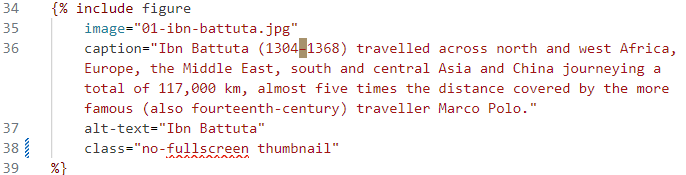
There are exceptions to this rule, which we’ve included below.
Don’t translate
This is a list of some of the elements which should not be translated:
- Any folder or filenames, including images specified within the
image=line of figure includes, for example:

- Any classes, for example, within a figure include:

- URLs within links, for example, the
(https://tinyco.re/9574839)link is not translated, but the text within square brackets is:

- Anything in the opening line of a
div, such as<div class="sidenote" markdown="1"> - The following tags, and any similar tags within curly brackets
{:.}:{:.show-page-number}{:.show-url}{:.tighten-}{:.loosen-}{:.keep-together}{:.page-break-before}
include tags
In general, where there are include tags, only the text within the quotation marks should be translated. For example:
Don’t translate tags like:
{% include metadata %}

{% include bibliography unit="" %}

{% include question file="" %}
But do translate text between quotation marks within tags, such as:
{% include chapter-opener
pre-title="Translate this text."
title="Translate this text."
subheadline="Translate this text."
%}
{% include figure
image="figure-01-01.svg"
reference="Translate this text."
title="Translate this text."
caption="Translate this text."
alt-text="Translate this text."
source="Translate this text."
more="https://tinyco.re/3290463"
interactive-graph-text="Translate this text"
class="Do not translate this text"
%}
{% include video
host="youtube"
class="Do not translate this text"
id="99ZTpN5R3mk"
image="youtube-99ZTpN5R3mk.jpg"
link="https://tinyco.re/3700296"
title="Translate this text."
description="Translate this text."
options=""
%}
{% include definition term="Translate this text" class="Do not translate this text" %}
Question files
The questions (MCQs) are in separate files from the unit files. In the question files, the following must not be translated:
The frontmatter at the top of the file, for example:
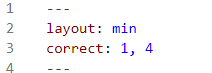
and the options and feedback tags:
{:.mcq-options}
{:.mcq-feedback}
Adding translations to YAML files
YAML files end in .yml.
YAML is reliant on structure and formatting to function.
Accordingly, don’t change the indentation at the start of each line, add line spaces or add anything, including spaces, outside of double quote marks.
The YAML files provided to you will include:
- The landing page
- Localizations
- Data figures
- The glossary
- The bibliography
In addition to YAML files, some of the unit content is included at the start of markdown files as YAML frontmatter.
Specific guidance for each follows.
Landing page
In the landing-page.yml file, a node (marked by the ISO 639-1 two-letter language code for your language) will have been set up for your translation, and this will contain a copy of the English content.
In your language’s node, only translate the content between the quotation marks. To find your node, search the file for your language’s two-letter code, followed by a colon, for example, ko: finds the Korean node.
This is an example of the node for the Korean translation:
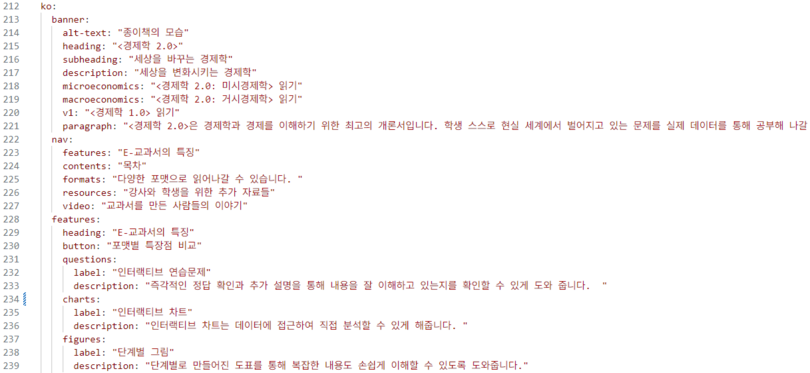
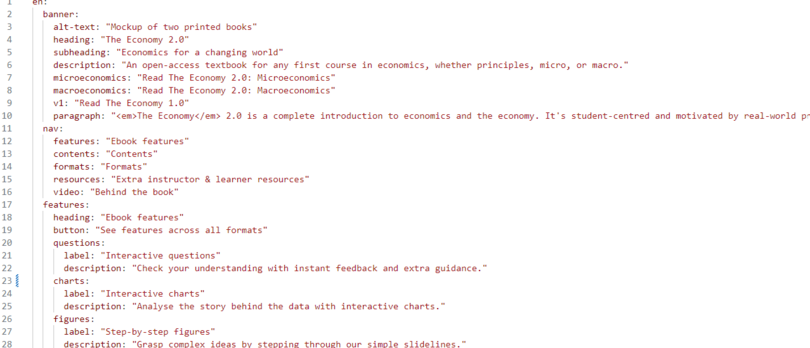
Don’t translate any content in the English node (line 1–211), for example:
Localizations
Similar to the landing page, in the locales.yml file, a node (marked by the ISO 639-1 two-letter language code for your translation) will have been set up for your language, and this will contain a copy of the English content.
In your language’s node, only translate the content between the quotation marks. To find your node, search the file for your language’s two-letter code, followed by a colon, for example, ko: finds the Korean node.
This is an example of the node for the Korean translation:
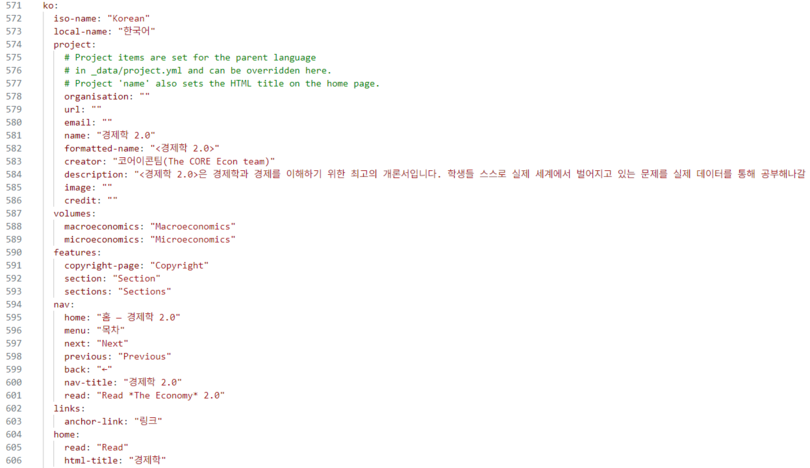
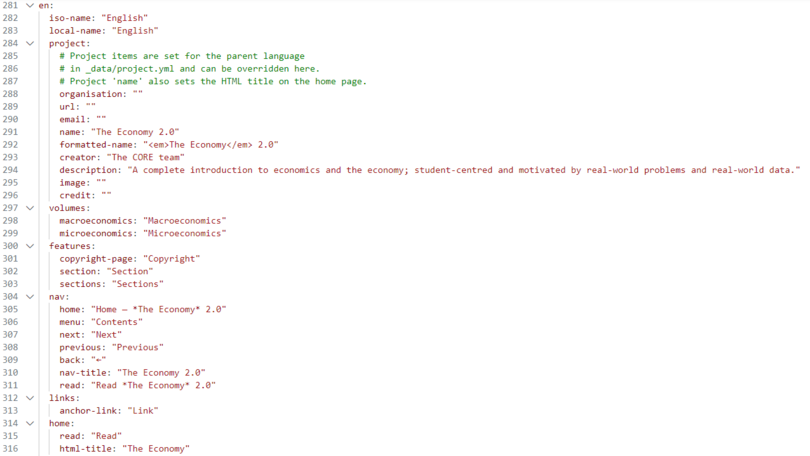
Don’t translate any content in the English node, for example:
Data figures
In the YAML files for the data figures:
- Copy all of the lines of English text and paste it into the same file.
- In the text you have pasted, replace the language code ‘en’ with the lowercase ISO 639-1 two-letter language code for your language .
- Translate all of the content between the double quotation marks. Don’t change the indentation at the start of each line, add line spaces or add anything, including spaces, outside of the double quote marks.
- Don’t translate any HTML tags within the content, such as
<br>.
For an example of this formatting, here is a screenshot of a file with three translations already set up:
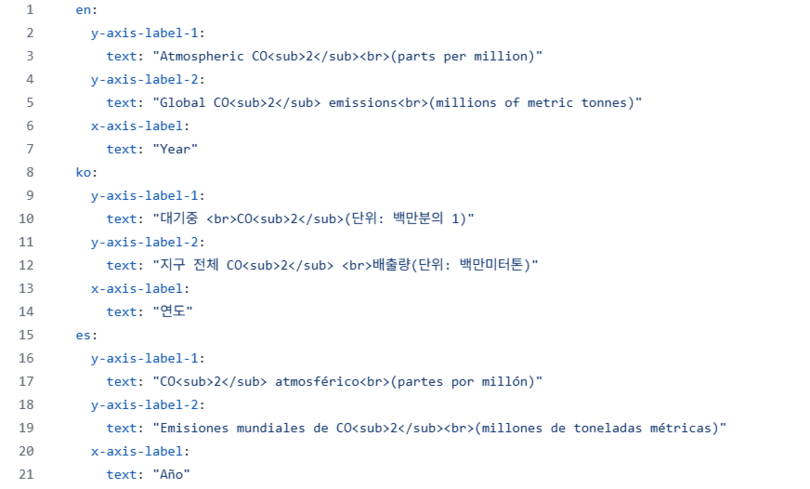
The number styles are set globally. Inform EBW of your language’s number styles, namely decimal indicators and thousand separators, and we will see that the correct styles are applied.
Glossary
In the glossary.yml file, only translate the content between the double quotation marks.
For example:
- term: "Translate this text."
  definition: "Translate this text."
  cross-reference: "Translate this text."
Bibliography
In the bibliography.yml file, only translate the content between the double quotation marks on the reference line only.
For example:
- reference: "Translate this text."
Don’t translate the units in which each reference will appear, for example:
- "1"
- "bibliography"
YAML frontmatter
The unit, front- and endmatter markdown files include YAML frontmatter. This is everything between the set of three dashes, for example:

Translate the text between the double quote marks for:
- the title
- the image-credit (up to the
|character, that is, not the URL) - the description
- the image-caption.
Don’t translate:
- the image (file name)
- the image-credit URL (after the
|character) - the style
- the BugHerd code.
Translating the index
The dynamic index used in CORE publications consists of two components:
- HTML index tags, which mark the position of indexed terms within the content
- an index list (a YAML file), containing all indexed terms.
Index list
We recommend that the index list is translated at the beginning of a project so that the translations of certain concepts or phrases are standardized throughout.
This file is usually called 50-05-index.md.
Within it, don’t translate:
- the
style: endmatter-page contains-indexline in the YAML frontmatter at the top of the file - the index subheading, such as
{:.index-subhead}A - the closing
{:.reference-index}tag at the end of the file.
Be sure not to change the indentation, add spaces at the end of lines, or add blank lines.
Do translate:
- the text between the double quotes in the YAML frontmatter’s
title: "Index"line - the heading
# Index, matching what was used in the YAML frontmatter above, and retaining the hash - each term in the list, retaining the
-before it, and, for nested entries, the indentation.
Once it has been translated, the index list will be re-alphabetized by EBW.
Index tags
The HTML index tags in place within the units look something like this:
<!--index:
Ibn Battuta~
Bengal
Indian subcontinent
India
-->
These can be translated in place, along with the rest of the unit content. Note that since they are HTML comments they will not display within any translation software, and will need to be viewed and translated within the markdown files.
Within these tags:
- don’t alter the HTML:
<!--index:and--> - retain any formatting used for:
- ranges:
~ - subentries:
\\
- ranges:
- don’t add any spaces after terms or blank lines.
Replace the English terms with the translated terms, using the exact same term as used in the index list (replicate the spacing, spelling, case and punctuation).
